Computer-Use AI Agents: Automate Back-Office Screens Without Risky Clicks
Computer-use AI agents can move admin work through old portals and CRMs, but service businesses need review gates before launch.
Many service businesses still run on software that was never designed for clean automation. A property manager may copy maintenance details into a vendor portal. A dental office may re-enter appointment notes into a practice-management screen. An HVAC dispatcher may update a customer record, calendar slot, invoice note, and technician message by hand.
Computer-use AI agents are becoming relevant because they can work through screens, not just APIs. That matters when the business has old portals, disconnected vendor systems, or customer records trapped inside tools that do not easily talk to each other.
Quick take: Recent AI platform updates show agents moving from answering questions to taking action across apps and screens. The practical opportunity for service businesses is not "let AI click everything." It is to automate repetitive screen work with clear review gates, narrow permissions, activity logs, and human approval before customer-facing or financial actions happen.
| If you only read one section | Read this |
|---|---|
| You want the business takeaway | What changed with computer-use AI agents |
| You have old portals or CRMs | What this means for your back office |
| You worry about mistakes | The risk checklist before an agent clicks |
| You need a practical rollout | A 30-day implementation plan |
| You want Zenovae's fit | Where Zenovae helps |
What changed with computer-use AI agents
OpenAI describes computer use as a way for agents to complete tasks on a computer by producing mouse and keyboard actions. Its March 2025 announcement says this can help automate browser-based workflows and data-entry tasks across legacy systems, but it also notes that human oversight is recommended for operating-system tasks because the model is not yet highly reliable in that environment (OpenAI).
Microsoft's Copilot Studio documentation, updated June 29, 2026, shows the same direction from a governance angle. Its human-supervision guidance says computer-use agents can escalate for confirmation or more information, and it warns that hidden instructions in screenshots or web pages can influence actions in unintended ways. Microsoft recommends trusted, isolated environments and validation checks before instructions are executed (Microsoft Learn).
OpenAI's workspace agents page also frames the business pattern clearly: agents can use tools to update tickets, edit documents, or send messages, while admins define permissions, approval checkpoints, and monitoring (OpenAI Workspace Agents). The related OpenAI Help Center article says write actions should use safety controls, and that app connectors default to asking before write actions during an agent run (OpenAI Help Center).
Meta's July 24, 2026 announcement adds a consumer-facing signal: Meta AI can now make plans, connect to email and calendar apps, create slides, and handle tasks on a user's behalf (Meta). The buyer takeaway is broader than Meta's product: AI assistants are increasingly expected to act inside everyday tools, not just generate text.
Plain-English version: an AI agent is starting to look less like a chatbot and more like a junior operations assistant. It can read context, prepare steps, and use software. That makes workflow design, approvals, and support more important than the model demo.
What this means for your back office
A computer-use AI agent is useful when the job happens in screens your team already uses. It can read a page, click a button, fill a form, copy a value, upload a file, or prepare a record for review.
That does not make it the right tool for every workflow. If your CRM, calendar, phone system, or accounting tool has a stable integration, a direct AI integration or custom software connector is usually cleaner. Computer use is most useful when a task is valuable, repetitive, and stuck behind an old interface.
| Back-office task | Manual workflow today | Computer-use agent workflow |
|---|---|---|
| Vendor portal updates | Staff copy job details from email into a portal | Agent opens the portal, fills standard fields, and pauses before submit |
| CRM cleanup | Admins retype notes after calls or forms | Agent prepares updates and asks the owner to approve risky changes |
| Appointment changes | Front desk checks calendar, CRM, and message history | Agent gathers context and drafts the update for staff review |
| Claims or document intake | Operators download, rename, upload, and track files | Agent moves documents through the screen and logs completion |
| Weekly admin reporting | Manager checks several systems manually | Agent collects screen-visible data and drafts a status summary |
For service businesses, this can reduce the invisible admin tax: switching tabs, waiting for portals, retyping the same customer details, and checking whether a task was actually completed. The value is usually faster cycle time, fewer missed updates, cleaner handoffs, and more consistent customer communication.
Where computer use fits beside normal integrations
Think of computer use as one option in an automation toolbox, not the whole strategy.
| Automation option | Best fit | Watchout |
|---|---|---|
| Native app integration | CRM, calendar, email, forms, phone systems, and accounting tools with APIs | Requires setup and mapping, but is usually more reliable |
| Custom internal software | Repeated workflows that need dashboards, permissions, reports, or business-specific rules | Needs clear scope and maintenance plan |
| Computer-use AI agent | Legacy portals, browser-only tools, and temporary workflows without good APIs | Needs supervision, logs, and tight boundaries |
| Human task queue | Sensitive judgment, exceptions, approvals, refunds, complaints, or pricing decisions | Still needs owners and response targets |
The best implementation often combines these. For example, an AI integration can pull a missed-call summary into the CRM, a custom dashboard can show pending work, and a computer-use agent can prepare a vendor portal update that a person approves before submission.
The risk checklist before an agent clicks
Computer-use agents create a different risk profile because they interact with the same screens your staff use. They can click the wrong button, misunderstand a page, expose sensitive information to the wrong workflow, or follow malicious instructions hidden in a page.
NIST's AI Risk Management Framework is useful here because it focuses on trustworthy AI across design, deployment, use, evaluation, and risk management (NIST). For a service business, that does not require a heavy compliance program. It does require a clear answer to "what can the agent do, who reviews it, and how do we know what happened?"
| Risk | Why it matters | Practical control |
|---|---|---|
| Wrong screen action | A bad click can update a customer record, send a message, or submit a form | Use approval gates before submit, send, delete, refund, or close actions |
| Prompt injection | Hidden text on a page may try to steer the agent | Use trusted environments and validate fields before execution |
| Over-broad access | The agent may see more customer or financial data than it needs | Limit accounts, roles, tools, and pages to the workflow |
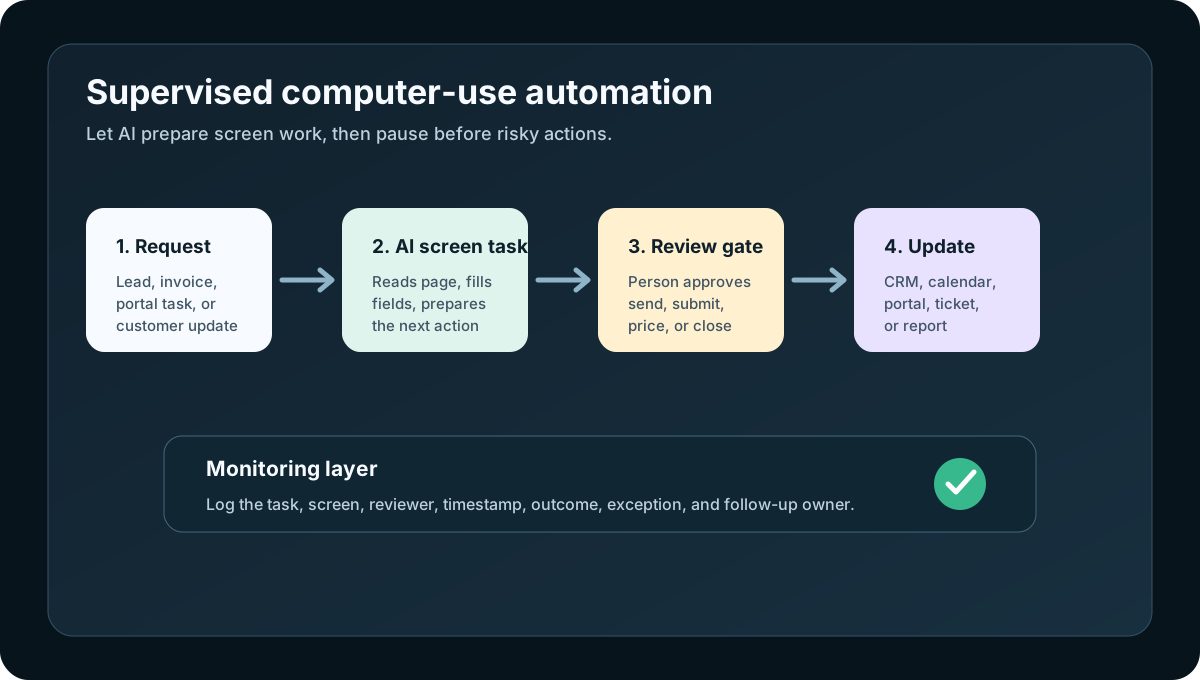
| No audit trail | Managers cannot tell what changed or why | Log screen, task, reviewer, timestamp, and outcome |
| Unclear ownership | Staff assume the agent handled work that is still waiting | Route exceptions to named people with deadlines |
| Fragile process | A small UI change can break the workflow | Monitor runs and keep support in place after launch |
The key is to define "pause points." These are moments where the agent prepares the work but does not finish it without a person.
Good pause points include sending a customer message, submitting a vendor form, changing price or availability, closing a ticket, deleting a record, approving a payment, or entering sensitive personal information.
What to automate first
Start with tasks that are frequent, rules-based, and easy to review. Avoid your messiest edge cases until the basic workflow is observable and trusted.
| Priority | Good first workflow | Why it is safer |
|---|---|---|
| 1 | Prepare a CRM update from a call note | Low-risk if a person approves before saving |
| 2 | Fill a vendor portal form from known job data | Repetitive, structured, and easy to check |
| 3 | Draft a scheduling change summary | Helpful for staff, but does not need to send automatically |
| 4 | Collect weekly status data from screens | Useful for reporting with limited customer impact |
| 5 | Submit routine back-office forms | Only after review gates and logs are working |
Do not start with refunds, medical advice, legal commitments, sensitive tenant disputes, emergency dispatch decisions, or pricing exceptions. Those workflows may still benefit from AI, but they should begin as assisted review, not automatic completion.
A 30-day implementation plan
You do not need to rebuild your whole back office to test this. A practical rollout starts with one narrow workflow and proves whether the agent can save time without adding operational risk.
| Week | Goal | Output |
|---|---|---|
| 1 | Map the manual screen workflow | Steps, systems, fields, owner, exceptions, and success criteria |
| 2 | Define permissions and pause points | What the agent can read, draft, click, and never do alone |
| 3 | Build the first assisted workflow | Agent prepares work, person reviews, system logs the outcome |
| 4 | Monitor runs and improve | Error list, time saved observations, better prompts, and support plan |
The first success metric should be operational clarity, not full autonomy. Ask: did the task become easier to see, faster to review, and less dependent on memory?
FAQ: computer-use AI agents for service businesses
What is a computer-use AI agent?
A computer-use AI agent is an AI workflow that can operate a software screen through actions such as clicking, typing, reading page content, and navigating forms. In plain English, it is an assistant that can work through a browser or app interface when a direct integration is not available.
Is this the same as an AI integration?
No. An AI integration usually connects systems through approved APIs or connectors. Computer use works through the visible interface. It can be helpful for legacy systems, but it usually needs more monitoring because screens can change and visual context can be misunderstood.
Should a small service business let an AI agent submit forms automatically?
Only after the workflow has been tested, limited, logged, and reviewed. A safer first version lets the agent prepare the form and pause before submission. The business can later decide which low-risk tasks are safe to auto-submit.
What systems can this help with?
It can help with browser-based CRMs, scheduling tools, property-management portals, vendor portals, document-upload screens, customer-service dashboards, and internal admin tools. The best candidates are repetitive tasks with clear inputs and reviewable outputs.
Where Zenovae helps
Zenovae helps founders and service-business operators turn messy admin work into practical automation. For computer-use workflows, that usually means mapping the task, deciding whether a direct integration or screen automation is the better fit, building the workflow, and adding the controls a business needs before launch.
That can include AI integrations with CRM, email, phone systems, calendars, forms, and internal tools; custom dashboards for review queues; human-in-the-loop approval rules; RAG knowledge systems for approved answers; and post-launch monitoring so the workflow keeps working when forms, policies, or software screens change.
Want to remove a manual workflow? Zenovae can map the task, connect the right tools, and show what an AI integration or custom software build would look like before your team commits to a full rollout.
Sources
- OpenAI: New tools for building agents
- OpenAI: Workspace agents for business
- OpenAI Help Center: ChatGPT Workspace Agents for Enterprise and Business
- Microsoft Learn: Human supervision of computer use
- Microsoft Learn: Agent flows overview
- Meta: Meta AI Doesn't Just Think, It Acts
- NIST: AI Risk Management Framework
Need Help with Your AI Project?
At Zenovae, we build production-ready AI systems that scale. From OpenClaw setup to custom integrations, Mission Control workflows, and full-stack delivery, we can help you ship faster and avoid costly mistakes.
Let's Talk